Auto Add

Thursday, 24 May 2012

How To Configure Remote Desktop To Hyper-V Guest Virtual Machines

Configuring Remote Desktop (RDP) from a host Hyper-V machine to a guest virtual machine can be tricky, so this post is dedicated to the issues and resolution steps I went through to allow RDP.  Cutting to the point, below are the things to look for followed by some explanation about my scenario if you care to read.  This is not an exhaustive list of what is required, just the items that were causing problems for my particular scenario.

Requirements

  1. Allow Remote Desktop Connections in guest OS.
  2. The network adapter type must allow communication with host machine (e.g. use an “Internal” or “External” virtual adapter.)
  3. If running Server 2008 R2 on guest, network discovery mode must be turned on.
  4. If running Server 2008 R2 on guest, the services supporting network discovery mode must be running: - DNS Client
    - Function Discovery Resource Publication
    - SSDP Discovery
    - UPnP Device Host

My Environment

    A quick word about my environment.  I am running Windows Server 2008 R2 with Hyper V on my laptop and numerous guest VMs running Windows Server 2003 R2 or Windows Server 2008 R2.  I run a domain controller VM and then 1 or 2 SharePoint servers depending on my work needs.  I’ve found this setup to work well except when it comes to the display window for my VMs.

Allow RDP Connection

    This item I had previously taken care of, but it bears repeating because by default Windows Server 2008 R2 does not allow RDP connections.  Change the setting from “Don’t allow…” to whichever “Allow connections…” setting suits your needs.  I chose the less secure option as this is just my dev laptop.
ConfigureRDPHyperVGuest8

Network Adapter Type

    When I originally configured my VMs I configured each to use 2 network adapters: one using the physical ethernet adapter for internet use and a virtual private adapter for communication between the VMs.  The connection for the ethernet adapter is an "”External” adapter and (as my co-worker Kelly Jones pointed out in comments below) does allow connections between host and guest.  After he pointed this out though I realized that my ethernet adapter is not always reliably enabled (power cord not in disables NIC.)  As such I need a secondary adapter that will always be on to connect the host and guest.  The virtual private adapter I had allowed communication ONLY between the VMs and not to my host.  There is a third option “Internal” which allows communication between VMs as well as to the host.  After finding out this distinction I promptly created an Internal network adapter and assigned that to my VMs.
ConfigureRDPHyperVGuest1

Turn On Network Discovery

    Seems like a pretty common sense thing, but in order to allow remote desktop connections the target computer must able to be found by the source computer . One of the settings that controls if a computer can be found on the network is aptly named Network Discovery.  By default Windows Server 2008 R2 turns Network Discovery off for security purposes.  To enable it open up the Network and Sharing Center.  Click “Change Advanced Sharing Settings” on the left.  On the following screen select “Turn on network discovery” for the currently used profile and click Save Settings.  You may notice though that your selection to turn on network discovery doesn’t save.  If this is the case then you most likely don’t have the supporting services running (as was my case.) ConfigureRDPHyperVGuest4
ConfigureRDPHyperVGuest5

Network Discovery Supporting Services

    There are a total of 4 services (listed again below) that need to be running before you can turn on network discovery . The below images highlight these services.  In my guest VM I found that I had DNS Client already running while the other 3 were disabled.  I set them all to enabled and started the ones that were stopped.  After this change I returned to the Sharing settings screen and found that Network Discovery was turned on.  I’m not sure whether this was picking up my attempt to turn it on previously or if starting those services turned it on.  Either way the end result was a success.
- DNS Client
- Function Discovery Resource Publication
- SSDP Discovery
- UPnP Device Host
ConfigureRDPHyperVGuest2 ConfigureRDPHyperVGuest3

Before and After Results

    The first image is the smaller square shaped viewing window used by the Hyper-V native connection.  The second is the full-screen RDP connection in all its widescreen glory.
ConfigureRDPHyperVGuest6 ConfigureRDPHyperVGuest7


Wednesday, 23 May 2012

Install or Enable Hyper-V Virtualization in Windows 8

How to Install or Enable Hyper-V Virtualization in Windows 8

sshot-13
Windows 8 includes Hyper-V as a virtualization platform, but since not everybody will use this feature, it’s not enabled by default. Here’s how to enable it on your Windows 8 PC.

Confusion

Hyper-V only allows you to create a new virtual machine on 64-bit versions of Windows 8, but the client tools are available on both versions. If you are running 32-bit, you’ll be able to do the installation, but you won’t be able to actually use it to create a new VM.

Installing or Enabling Hyper-V

Hyper-V is installed in the add features section of the add or remove programs dialog. To get there we need to open a run box by pressing Win+R, now type appwiz.cpl and press enter. You could also get to the Programs and Features box through Control Panel or the Start search, but this is easy and geeky.

Once the Programs and Features dialog opens, select the Turn Windows features on or off link on the left hand side.

When the Windows Features open, check the Hyper-V option. Then click Ok.

Windows will now add the Hyper-V binaries to your Windows installation.

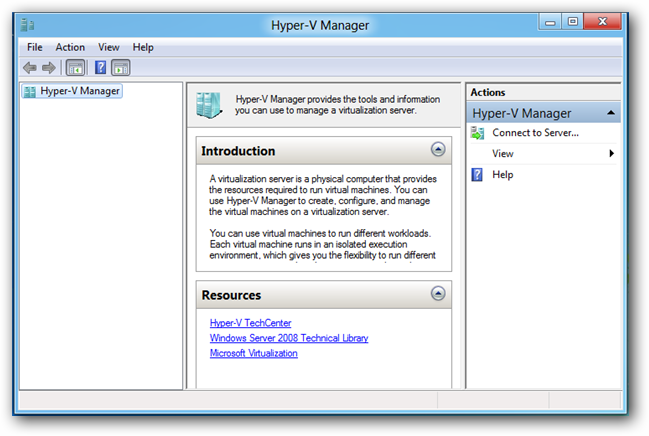
You can now launch the Hyper-V manager from the Metro dashboard.

Friday, 4 May 2012

Share Files Between a Windows 8 Virtual Machine and a Windows 7 Host Machine in VMware Workstation

When running the latest version of Windows 8 in a virtual machine in VMware Workstation, the shared folders feature doesn’t work because you can’t install VMware Tools. So, how are you supposed to transfer files between your VM and your Windows 7 host?
There is a way around this problem. You can share a folder on your Windows 7 host machine and then map that folder as a network drive in your Windows 8 virtual machine. We’ve shown you how to transfer files between a Windows 8 PC and a Windows 7 PC. This method uses that procedure, but there are also some settings you need to work with in VMware Workstation to ensure that you can both access your Windows 7 host machine and the internet through the VMware network connection.
Start your Windows 8 virtual machine in VMware Workstation. When you’ve logged into Windows 8, select Settings from the VM menu.
NOTE: You’ll have to press Ctrl + Alt to get the mouse to access items outside of the virtual machine.
01_opening_settings_for_vm
The Virtual Machine Settings dialog box displays. On the Hardware tab, select Network Adapter. Make sure the NAT option is selected in the Network connection box. Click OK to accept your changes and close the dialog box.

Select Virtual Network Editor from the Edit menu.

If the User Account Control dialog box displays, click Yes to continue.
NOTE: You may not see this dialog box, depending on your User Account Control settings.

Select the NAT type of network connection in the list of connections at the top of the Virtual Network Editor dialog box. Make sure the Connect a host virtual adapter to this network check box is selected. The name of your host virtual adapter displays below the check box item. The Use local DHCP service to distribute IP address to VMs check box should also be selected.
NOTE: This is the name of the connection displayed when you run the “ipconfig” command on your Windows 7 host machine to check the IP address, as we’ve previously described.

To connect the Windows 8 virtual machine and Windows 7 host machine, you must now share a folder on your Windows 7 host machine and then map to that folder in the Windows 8 virtual machine. For instructions on how to do this, see our article about transferring files between a Windows 8 PC and a Windows 7 PC.

Enable and Disable the (Hidden) Administrator Account on Windows 7

The account is created in Windows 7 or Vista, but since it’s not enabled you can’t use it. If you are troubleshooting something that needs to run as administrator, you can enable it with a simple command.
Enable Built-in Administrator Account
First you’ll need to open a command prompt in administrator mode by right-clicking and choosing “Run as administrator” (or use the Ctrl+Shift+Enter shortcut from the search box)
image
Now type the following command:
net user administrator /active:yes

You should see a message that the command completed successfully. Log out, and you’ll now see the Administrator account as a choice. (Note that the screenshots are from Vista, but this works on Windows 7)


You’ll note that there’s no password for this account, so if you want to leave it enabled you should change the password.

Disable Built-in Administrator Account
Make sure you are logged on as your regular user account, and then open an administrator mode command prompt as above. Type the following command:
net user administrator /active:no

The administrator account will now be disabled, and shouldn’t show up on the login screen anymore.

Wednesday, 2 May 2012

Windows Run commands

Goto start => run , type  these commands and click  ok.
inetmgr => “opens IIS manager console if IIS is installed on the server”
appwiz.cpl => ” opens add/remove programs”
lusrmgr.msc => ” opens local users and groups console”
gpedit.msc => “Opens group policy object editor”
regedit => “opens the registry editor”
dnsmgmt.msc => ” opens dns management console ”
ncpa.cpl => ” Opens network connections ”
eventvwr.msc => ” opens event viewer”
services.msc => ” opens the services on your local machine”
dsa.msc => “Opens active directory users and groups ”
hdwwiz.cpl => ” opens add hardware wizard ”
wuaucpl.cpl => ” Opens Windows Automatic Update ”
secpol.msc => ” Opens Local security settings ”
compmgmt.msc => ” opens computer management console ”
diskmgmt.msc => ” opens Disk management Console ”
control => “opens control panel”
devmgmt.msc => ” Opens Device manager console ”
mstsc => “opens Remote Desktop connection console”
sysdm.cpl => ” system Properties ”
taskmgr => ” opens task manager”
firewall.cpl => ” opens Windows Firewall ”

Enable More than one Users to RDP to Windows 2008

By default Windows 2008 allows only one user to RDP  to the server . If some one logins to the server while you are logged in you are logged off the server . In order to enable more than one users to login at the same time ( but the limit is maximum 3 users ) goto start => administrative tools =>
Remote Desktop Services => Remote Desktop Session Host configuration , Double click Restrict Each User to a Single Session and uncheck Restrict Each User to a Single Session Click OK , Click OK.

How to Install Network load Balancing in Windows 2003 And Windows 2008

In windows 2003 goto start => Control panel => Network connections => Local Area Connection , click Properties , check the checkbox Network Load Balancing and Click install .

In windows 2008 server , goto start => Administrative tools => Server Manager => Features => Add Features , Check the checkbox network Load Balancing , click Next , Click Install , After it is installed click Finish . You would need to reboot the server after Network Load balancing is Installed .

How to extend Activation Trial Period Up to 120 Days on Windows Server

Goto =>start run and type regedit , In the registry at the following path
HKEY_LOCAL_MACHINE\SOFTWARE\Microsoft\Windows NT\CurrentVersion\SoftwareProtectionPlatform , set the SkipRearm value to decimal or hexadecimal(0) value .
If its not there add skipRearm REG_DWORD with decimal(0) or hexadecimal (0) value .

Goto the elevated command prompt( Elevated command prompt is command prompt runned as administrator) and execute the command from C:\Windows\system32
slmgr -rearm
Restart The System

Create a Website in IIS 7.0 and Make it Live on the Internet

1) Before adding your first website you will need to register the website or you can register the website after you have added it in IIS in order for the website to work.
2)  After that on your Windows Server Go to Start => Run and type inetmgr . This will open your IIS manager . In the Left pane Right Click on Sites and Click Add Website . Input the website name , the Physical path for the root of the website, select the IP address to which you want to point your website from the drop down  and the hostname of the website . Click Ok and the website will be added in IIS.


3) On the Server go to Start => Administrative tools=>DNS  =>Right Click Forward Lookup Zones =>Click New Zone , click Next , Select Primary Zone , Click next , type the website Name which you had created from IIS , click next , click next , Select Do not allow dynamic updates , click next , click Finish.


4) Once the Zone has been added you can Set the Name servers for the website and add the A record to point the website to your servers IP .


5) You now need to ask the registrar to point the A record of the website to the servers IP or Use the Name Server Set on the server .
Thats it . Now you can browse your website in the browser and start uploading files to the home directory of your website.

Microsoft Intune, a Compliance Policy

  In Microsoft Intune, a Compliance Policy is a set of rules and settings that a device must meet to be considered "healthy" and ...